Google Cloud Speech Recognition Unity
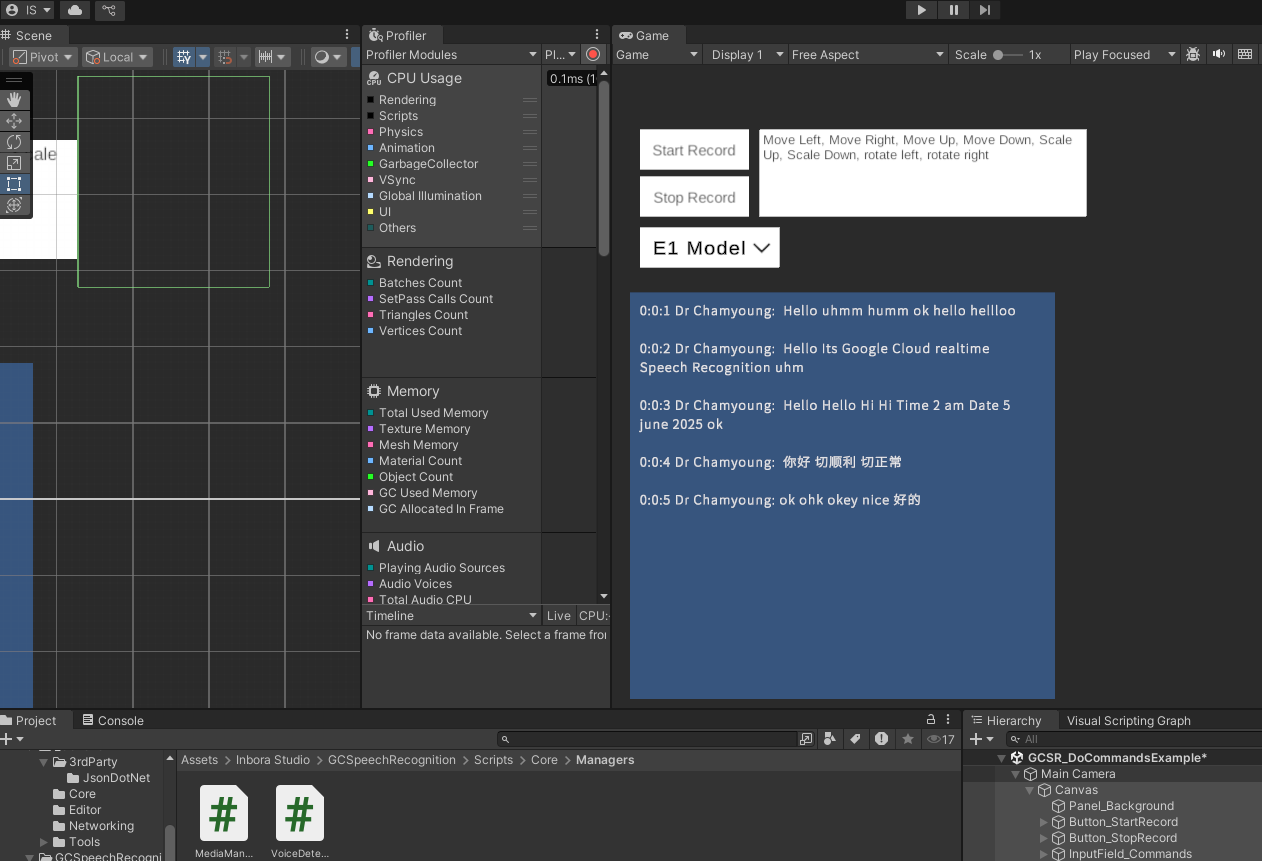
Link to open source: https://github.com/InboraStudio/Google-Cloud-Speech-Recognition-Unity
Link to Live Project: https://github.com/InboraStudio/Google-Cloud-Speech-Recognition-Unity
# Google-Cloud-Speech-Recognition-Unity
This is a cross-platform speech recognition solution for Unity, powered by the Google Cloud Speech-to-Text API. It supports multiple platforms such as Android, iOS, Windows, and macOS, using a custom-built DLL to ensure multiplatform compatibility.
---

## Key Features
- Full integration with Google Cloud Speech-to-Text API
- Works on Android, iOS, Windows, macOS
- Custom DLL for multiplatform support
- Optional runtime voice detection
- Support for multiple microphones with device selection
- Context-aware recognition using Speech Contexts
- Handles long-running recognition operations
- Save recorded audio clips as `.wav` files
- Compatible with IL2CPP and Mono
- Partial support for WebGL
- Supports Unity Cloud Build

---
## Getting Started
### Recording Setup
In the `StartRecord` handler, call the `StartRecord(false)` function.
Passing `false` disables runtime voice detection.
To enable automatic background noise detection, use the `DetectThreshold` function.
### Speech Recognition Flow
1. Create a `RecognitionConfig` instance using `RecognitionConfig.GetDefault()`.
2. Modify parameters such as:
- Language (from language dropdown)
- Number of sound channels
- Speech contexts for improving recognition accuracy
3. Create an array of `SpeechContext` objects to tailor recognition results to your context.
4. Prepare the audio for recognition:
- Use `RecognitionAudioContent`
- Convert the audio clip to base64 and assign to `content`
5. Create a `GeneralRecognitionRequest` with the config and audio data.
6. Call the `Recognize()` function with the request.

### Microphone Setup
The plugin provides these helper functions:

- `HasConnectedMicrophoneDevices()` – Checks if any microphones are available
- `SetMicrophoneDevice(string deviceName)` – Selects a specific microphone
- `GetMicrophoneDevices()` – Retrieves a list of all connected microphones
---
## Handling Recognition Results
You can log and handle events using simple handlers.
The recognition success event provides a response object:
- Loop through `response.results`
- Each result contains `alternatives`
- Each alternative contains:
- `transcript`: the recognized text
- `words`: each word with timing metadata

Aggregate these to form your final recognized output.
---
## Setting Up Google Cloud
1. Go to: [Google Cloud Console](https://console.cloud.google.com/)
2. Create a new project or select an existing one.
3. Navigate to **Menu > API & Services > Credentials**
4. Click **Create Credentials > API Key**
5. Copy this key and paste it into the `GCSpeechRecognition` prefab in your Unity scene.
6. Go to the **APIs** section and enable the **Speech-to-Text API**.
Now your project is fully configured.
---
## Special Functions
| Function | Description |
|-------------------------------|-------------------------------------------------------------------|
| `GetOperation` | Gets info about a long-running operation |
| `GetListOperations` | Lists all long-running operations |
| `CancelAllRequests` | Cancels all active recognition requests |
| `ReadyToRecord` | Checks if recording is possible at the current moment |
| `SaveLastRecordedAudioClip` | Saves the last recording as a `.wav` file |
| `LongRunningRecognize` | Starts a long-running recognition request |
| `CancelRequest(id)` | Cancels a specific request by its ID |
| `HasMicrophonePermission` | Checks if microphone access is granted |
| `RequestMicrophonePermission` | Requests permission for microphone access on platforms like Android|
---
## Notes
- Fully compatible with IL2CPP and Mono
- Unity Cloud Build support included
- Partial support for WebGL platforms
---
## License
This tool uses Google Cloud APIs under their respective licenses.
Please ensure you follow Google’s [Terms of Use](https://cloud.google.com/terms) when using their services.

